Grab that cache with both hands and make a stash-Delving into Redis Cache

DALL-E generated image inspired by Pink Floyd’s Dark Side of the Moon album cover

In my last post, we dove into the intricacies of integrating Azure AI Translator into the BONO Search system—showing how language detection and dynamic translation can bridge communication gaps and expand a single-language design into a multilingual experience. After grappling with throttled translation requests due to Azure’s quota limits, I also began to notice another inefficiency: repeatedly translating the same large movie plot descriptions during UI testing. This led me to a familiar challenge in cloud architectures—redundant API calls not only add latency but also inflate costs.

This blog post references an iconic lyric from Pink Floyd’s Money, “grab that cash with both hands and make a stash.” While the song isn’t about caching per se, I thought it was a fun way to play with the idea of building a stash (using Redis cache) to save money by reducing unnecessary translation calls. In this post, we’ll explore how integrating a caching layer can seamlessly optimize our architecture—ensuring every translation request is as efficient and cost-effective as possible.

The first step in setting up this change was to setup an Azure Cache for Redis resource in my resource group through the Azure Portal. The setup was pretty straight forward but there were a few gotchas on the free tier that I had to overcome:

  1. Private by Default:
    • The resource is private by default, and the portal doesn’t offer an option to make it public. I struggled a bit with ChatGPT for a workaround but eventually found a solution on Stack Overflow that involved running a CLI command to enable public network access. Remember, it’s crucial to restrict access to your IP address range via the portal for security.
  2. Debugging Challenges:
    • The free tier doesn’t provide an easy way to view cache content, which initially made debugging tedious—especially when verifying that my code was saving data to the cache. Once I implemented a read operation, I could finally check the results of my initial saves.

Design Considerations for Integration

With the Azure resource in place, the next step was integrating the Redis endpoint into the search input and translation workflows. I considered two approaches:

Integrating Redis Directly into the React Client:
One option was to introduce the Redis library into the React client, enabling the SearchForm component to directly save and retrieve values from the cache. While this approach would work, it’s a similar problem to what I encountered in my previous post. In other words the approach tightly couples the UI components to our cloud infrastructure.

This tight coupling means that if we ever decide to change our caching provider—whether switching to a different Azure resource or another cloud provider—we’d be forced to refactor the React UI.

Embedding Redis into the MAW API:
Another option was to integrate the Redis library directly into the Multilingual Autodetection Wizard (MAW) API, effectively incorporating caching into the translation flow. At first, this seemed like a natural fit and a simpler solution.

However, after further consideration, I decided against it. The challenge here was that cache entries would be indexed by movie names, while the Translation API is designed to be agnostic—it isn’t aware of the context of what it’s translating (such as movie plots). Its generic design makes it reusable for various translation tasks, so embedding caching logic here would compromise that flexibility..

Ultimately I concluded that introducing a new API—dubbed the Floyd Translation Cache Service—was the best approach to manage interactions with the Azure Cache for Redis resource. This design not only isolates the caching logic from the UI and translation service but also ensures that our architecture remains modular and flexible for future changes.

Here is how the new API fits into the Search and Translation workflow:

Figure 1. Plot Translation flow with the new Cache Service(click the image to enlarge)

The Floyd Translation Cache Service

The API itself has 2 basic endpoints:

Save a Movie Plot:

Endpoint:

POST /api/TranslationCache/save-movie-plot
Content-Type: application/json

{
  "movieName": "string",
  "languageCode": "string",
  "translatedPlot": "string"
}

Implementation:

        public async Task SaveTranslation(string movieName, string languageCode, string translatedPlot)
        {
            _logger.LogInformation("Starting SaveTranslation for movie: {MovieName}, language: {LanguageCode}", 
                movieName, languageCode);
            var startTime = DateTime.UtcNow;

            var db = _redis.GetDatabase();
            string key = GenerateKey(movieName, languageCode);
            
            // This will automatically overwrite if the key exists
            await db.StringSetAsync(key, translatedPlot);

            var duration = DateTime.UtcNow - startTime;
            _logger.LogInformation("Completed SaveTranslation in {Duration}ms", duration.TotalMilliseconds);
        }

Retrieve a Movie Plot:

Endpoint:

GET /api/TranslationCache/get-movie-plot?movieName={movieName}
   &languageCode={languageCode}

Implementation:

        public async Task<string?> GetTranslation(string movieName, string languageCode)
        {
            _logger.LogInformation("Starting GetTranslation for movie: {MovieName}, language: {LanguageCode}", 
                movieName, languageCode);
            var startTime = DateTime.UtcNow;

            var db = _redis.GetDatabase();
            string key = GenerateKey(movieName, languageCode);
            
            var translation = await db.StringGetAsync(key);

            var duration = DateTime.UtcNow - startTime;
            _logger.LogInformation("Completed GetTranslation in {Duration}ms", duration.TotalMilliseconds);
            
            return translation.HasValue ? translation.ToString() : null;
        }

These endpoints leverage the StringSetAsync and StringGetAsync methods provided by the StackExchange.Redis client, ensuring efficient storage and retrieval of translated movie plots.

Integration with the React UI

After thoroughly testing the API, I integrated the Floyd Translation Cache Service with the React Search Form component. The following code snippet illustrates how the cache is utilized in the translation workflow:

// Translate plots back to the detected language if it's not English
      const translatedResults = (await Promise.all(
        results.map(async (item) => {
          let translatedPlot = item.plot;
          if (languageResult.language !== 'en' && languageResult.language !== 'unknown') {
            // Try to get cached translation first
            const cacheService = new CacheService();
            const cachedTranslation = await cacheService.getTranslatedPlot(item.name, languageResult.language);
            if (cachedTranslation) {
              translatedPlot = cachedTranslation;
            } else {
              const plotTranslation = await languageService.translateText(item.plot, 'en', languageResult.language);
              if (plotTranslation) {
                translatedPlot = plotTranslation.translatedText;
                await cacheService.saveTranslatedPlot(item.name, languageResult.language, translatedPlot);
              }
            }
          }

The code above references a new CacheService class that handles the HTTP calls to the caching endpoints. This service first checks for a cached translation of the movie plot and uses it if available; otherwise, it makes a fresh call to the translation service, then saves the new translation result into the cache for future requests.

Demonstrating the Caching Mechanism

In the video below, you can see the caching mechanism in action with a Spanish search query. On the left is the browser window showing the search screen and its console output, while the right displays the Floyd service’s log output.

Video: The Translation cache in action

During the initial search, we observe the following:

  • The Client side code logs a “not found” result in the browser when the Floyd Translation Cache returns no result,
  • The Client code also reports a “Cache miss for RoboCop” message followed by a “Save successful for RoboCop” message —indicating that the newly translated Spanish plot for RoboCop has been cached.
  • On subsequent searches with the same language (Spanish), the service logs a “Cache hit for RoboCop”

Simultaneously, the Floyd Translation Cache API logs mirror these events by showing the corresponding GetTranslation and SaveTranslation calls.

Conclusion

Integrating the Floyd Translation Cache Service addresses the challenges of redundant API calls and excessive latency in our translation workflows. By decoupling caching from both the UI and translation services and leveraging Azure Cache for Redis, I developed a modular and scalable solution that reduces operational costs while enhancing performance. Take a look at the code for the Floyd Cache Translation Service in my GitHub repo here and the React frontend changes here.

I’m pretty certain the approach will be reused upcoming projects and I look forward to sharing the next build with you…

And now, it’s time to Cue the next track…

Money” is a standout track from Pink Floyd’s 1973 album The Dark Side of the Moon. Known for its distinctive bassline and unique sound effects—including the iconic cash register noises—the song offers a satirical take on wealth, greed, and consumerism. Its innovative production and incisive lyrics have made it one of the band’s most enduring and influential pieces. -Source ChatGPT

Original album cover for Dark Side of the Moon

I said, “Do you speak-a my language?”, He just smiled and gave me a Vegemite sandwich

Dall-E generated referencing Men At Work’s Business as Usual Album cover

Today’s post pays tribute to that catchy lyric (seen in the title) from Men At Work’s iconic hit Land Down Under. The song follows a traveler experiencing different cultures, emphasizing the universal human connection—whether through sharing a meal, offering hospitality, or simply exchanging a smile, even when language isn’t shared. The song’s theme of communication—or the challenges of understanding one another—got me thinking about how AI is already solving many of the problems traditionally faced in software systems when it comes to multilingual support.

For a long time, software systems were designed with a single language in mind. If a company wanted to support additional languages, the process was often cumbersome—requiring manual translations, hardcoded text updates, and significant development effort. Adding a new language wasn’t just about translating words; it involved restructuring UI layouts, adapting date and currency formats, and ensuring character encoding compatibility. This made localization a lengthy and expensive process, often leaving non-English speakers with limited access to technology.

As I continue to explore Azure AI’s capabilities, I wanted to put its Translation Service to the test—specifically, its ability to detect and translate languages seamlessly. To do this, I decided to enhance my Bayesian Optimized Neural Output (BONO) search by integrating language translation. This would allow it to not only process and rank results intelligently but also make them accessible in multiple languages, breaking down language barriers in search queries and results.

By leveraging Azure AI’s Translator API, my goal was to dynamically detect the input language and provide real-time translations, ensuring that users receive relevant search results in their preferred language without the need for manual intervention.

To start, I decided to build an API dedicated to language detection and translation. This API would act as an intermediary, making calls to Azure’s Translator API while providing flexibility for future enhancements. By decoupling translation from the UI, I ensured that the system could evolve—whether by expanding features or even swapping out the translation provider (from Azure to say AWS)—without requiring changes to the frontend.

Initially, I considered embedding the translation capability directly into the BONO Search API. While this would have worked, a standalone translation API offered greater reusability. It could handle more than just search queries, allowing me to integrate language detection and translation into other projects.

The new API, called the Multilingual Autodetect Wizard (MAW)—a deliberate nod to Men At Work—was designed to seamlessly integrate into the existing architecture. Its role was to handle language detection and translation independently, ensuring that other services, including BONO Search, could leverage multilingual capabilities without being tightly coupled to a specific translation provider.

The Multilingual Autodetect Wizard (MAW) therefore acts as a language processing layer between the user and the BONO Search API, enabling multilingual support. Here’s how it integrates into the system:

1. Search Query Processing via MAW

  • The user submits a search query in any supported language.
  • The query is first sent to MAW for language detection using Azure Translator’s Detect API.

2. Language Detection & Translation (If Needed)

  • If the detected language is English, the query is sent directly to BONO Search API as usual.
  • If the detected language is not English, MAW calls Azure’s Translate API to convert the query into English before forwarding it to BONO Search.

3. Search Execution

  • The BONO Search API processes the English query, returning relevant search results in English.

4. Translating Results Back to the Source Language

  • If the original query was not in English, MAW translates the search results back into the user’s source language using Azure Translator.
  • If the query was already in English, results are returned as-is.

5. Returning the Final Response

  • MAW sends the translated (or original) search results back to the user, providing the results in their preferred language.
Figure 1: BONO Flow Diagram with MAW API (click to view in another tab)

MAW API – Multilingual Autodetect Wizard

After creating the Azure Translator resource, I began setting up the MAW API .The API just provides 2 basic endpoints so altogether not a complex amount of code, but as I went through a few rounds of testing, I realized the need for extensive logging of requests to ensure I had visibility when debugging.

Key Features:

  • Language Detection: Identifies the language of the input text via the Detect API.
  • Text Translation: Converts text into a target language using the Translate API.
  • RESTful Endpoints:
    • POST /api/translator/detect → Detects the language of provided text.
    • POST /api/translator/translate → Translates text into the target language.

Integrating MAW API with the React UI

With a working MAW API, the next step was to integrate it into the React UI. The React project had 3 main components viz. SearchForm.tsx, SearchResults.tsx and Modal.tsx. The main code changes were in the SearchForm.tsx where I started by adding calls to the MAW endpoint for language detection, followed by translation of the search query before passing the translated results to the BONO Search API.

I’ll admit—it was fun seeing the translation of the search phrase work live on the UI for the first time! At first, I considered stopping on just translating the search phrase since I had successfully demonstrated how the system could detect and translate search queries into English. However, I realized it would be far more valuable to dynamically translate the search results as well, ensuring a fully multilingual experience.

However, after adding the code to translate the movie plots returned in the search results, I ran into some unexpected errors on the MAW API when I discovered the free tier of Azure Translator had a request limit, restricting the number of translations I could make.

Handling Translation Limits with AI-Assisted Development

At first, I naturally considered upgrading to a higher Azure tier to increase my quota. At the suggestion of Claude 3.5, which had a view of my codebase and constraints through the Cursor IDE, it quickly generated a retry mechanism for the translation request, which would first detect the limit, pause and retry the request. This change does introduce a pause when the retry mechanism is triggered and unfortunately with a larger result set, reaching the quota limit is unavoidable. However for test purposes, this worked great.

After getting a working version, I realized that the SearchForm.tsx React component was now getting too cluttered with API requests. Instead of manually refactoring, I simply prompted Cursor to extract API calls into separate services.

Updated BONO Search User Interface

I tested the new search UI with the following phrases:

LanguageQueryDetection ResultTranslation
EnglishBoy learns Karate to defend himself from bulliesenNot Applicable
FrenchUn garçon apprend le karaté pour se défendre contre les intimidateursfrQuery from fr to en
Result from en to fr
SpanishNiño aprende Karate para defenderse de los matonesesQuery from es to en
Result from en to es
ZuluU-Boy ufunda i-Karate ukuze azivikele ezihlungwinizuQuery from zu to en
Result from en to zu

The results of each search phrase can be seen in the video clips below:

English Search Phrase: Boy learns Karate to defend himself from bullies
French Search Phrase: Un garçon apprend le karaté pour se défendre contre les intimidateurs
Spanish Search Phrase: Niño aprende Karate para defenderse de los matones
Zulu Search Phrase: U-Boy ufunda i-Karate ukuze azivikele ezihlungwini

Overall results

Altogether the results were impressive. Azure’s AI language service enabled a system written with content from a single language viz. English to support several other languages without alteration. Even with a language like Zulu, spoken only in Southern Africa, Azure’s AI language service could translate the search phrase with relative accuracy into English.

The full code for the Multilingual Autodetect Wizard API can be found here: https://github.com/ShashenMudaly/MultilingualAutodetectWizard

And finally, let’s cue the following track:

Land Down Under was released in 1981 by the Australian band Men at Work as part of their debut album Business as Usual. The song quickly became an international hit, topping charts in multiple countries, including the U.S., U.K., and Australia. Its catchy flute riff and vivid storytelling capture the spirit of adventure, cultural encounters, and national identity. With lyrics that follow a wandering traveler meeting eccentric characters around the world, the song remains an iconic anthem celebrating Australia’s unique charm and global presence.

Original album cover for Business As Usual

I Still Haven’t Found What I’m Looking For (Part 2)…Creating the BONO search

In this post, we’ll take a closer look at the technical components I built while putting together the U2-inspired BONO search system. Previously, we explored the PostgreSQL database and how I ran both semantic and lexical search queries on a table called movies. Now, we’ll dive deeper into the API and UI layers that bring this search system to life.

The BONO Search Database

To set up this database and the movies table, I followed these steps using an existing Azure subscription.

  1. Created an instance of the Azure Database for PostgreSQL flexible server
  2. Set up the necessary azure.extensions parameters in the database:
    • AZURE_AI
    • VECTOR
    • PG_TRGM
  1. Created the necessary PostgreSQL extensions by running the following through the psql command line tool
    • CREATE EXTENSION IF NOT EXISTS vector;
    •  CREATE EXTENSION IF NOT EXISTS azure_ai;
    • CREATE EXTENSION IF NOT EXISTS pg_trgm;
  2. Created a “movies” table with the following columns (id, name, plot, plot_vector)
  3. Uploaded movie data from a csv file to the movie table using a PowerShell script
  4. Created an Azure Open AI resource
  5. Deployed a text-embedding-ada-002 model
  6. Configured the Azure Open AI resource url and key in the PostgreSQL database by calling azure_ai.set_setting method for each of these settings
  7. Vectorized the movie data from the plot column and store the result in the plot_vector column using another PowerShell script

In the previous post, you may have noticed that the SQL queries referenced the text-embedding-ada-002 model multiple times. This is Open AI’s embedding model, which converts both plot descriptions and search queries from natural language into numeric vector representations. These vectorized representations, combined with transformer-based architecture, enable semantic search by allowing similarity comparisons based on meaning rather than exact keyword matches.

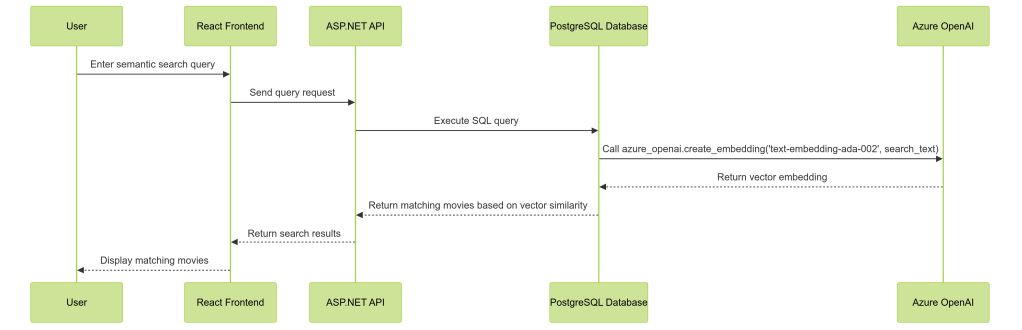
The BONO search system altogether comprises 4 main parts, namely a React UI, an ASP.net API, the PostgreSQL database server and of course the Azure Open AI resource hosting the deployed embedding model. 

We can see how these components work together for a Semantic search query:

The BONO Search API

Having set up the database I began working next on the API. This was written in C# as an ASP.net (ver 8.0) API.  A structure of this API can be seen here:

## Project Structure 
BonoSearch/
├── Data/
│ └── MovieDbContext.cs # EF Core DB Context
├── Models/
│ ├── Movie.cs # Movie entity
│ └── DTOs/
│ └── MovieDto.cs # Data Transfer Object
└── Repositories/
└── MovieRepository.cs # Data access layer
└── Services/
└── MovieService.cs # Business logic layer

After first implementing Semantic Search, I then added Lexical and Hybrid Search endpoints to expand the system’s capabilities. These queries are defined within the MovieRepository and accessed via the MovieService. This is the code to one of the methods from the repository

public async Task<IEnumerable<MovieDto>> SemanticSearch(string query)
    {
        var parameters = new NpgsqlParameter[]
        {
            new("query", query),
            new("embedding_model", EMBEDDING_MODEL)
        };

        var movies = await _context.Set<Movie>()
            .FromSqlRaw(@"
                SELECT m.id AS Id, 
                       m.name AS Name, 
                       m.plot AS Plot
                FROM movies m
                ORDER BY m.plot_vector <=> azure_openai.create_embeddings(@embedding_model, @query)::vector
                LIMIT 5", parameters)
            .ToListAsync();

        return movies.Select(m => new MovieDto 
        { 
            Id = m.Id, 
            Name = m.Name, 
            Plot = m.Plot 
        });
    }

A key detail to note here is the use of Entity Framework’s FromSqlRaw method with parameters, ensuring that dynamic SQL execution is handled safely to prevent SQL injection. This approach maintains both flexibility and security while executing raw SQL queries.

The BONO Search UI

As I’m currently learning to code in React, I decided to try and build the front end using React with Next.js as well as Typescript and Tailwind css. AI coding tools such as Cursor and Vercel’s V0 were a huge help in getting this completed and being able to converse with the AI model on elements of the code for explanations was an effective learning experience.

The React project contains 3 main components

  1. SearchForm.tsx – Responsible for:
    • Rendering the main search components (input box, search button, radio selectors).
    • Sending queries to the search API and updating searchResults.
    • Passing searchResults to the SearchResults component.
  2. SearchResults.tsx – Handles:
    • Displaying the search results (movie name and truncated plot).
    • Setting up an onClick handler to pass selected movie details to Modal.tsx.
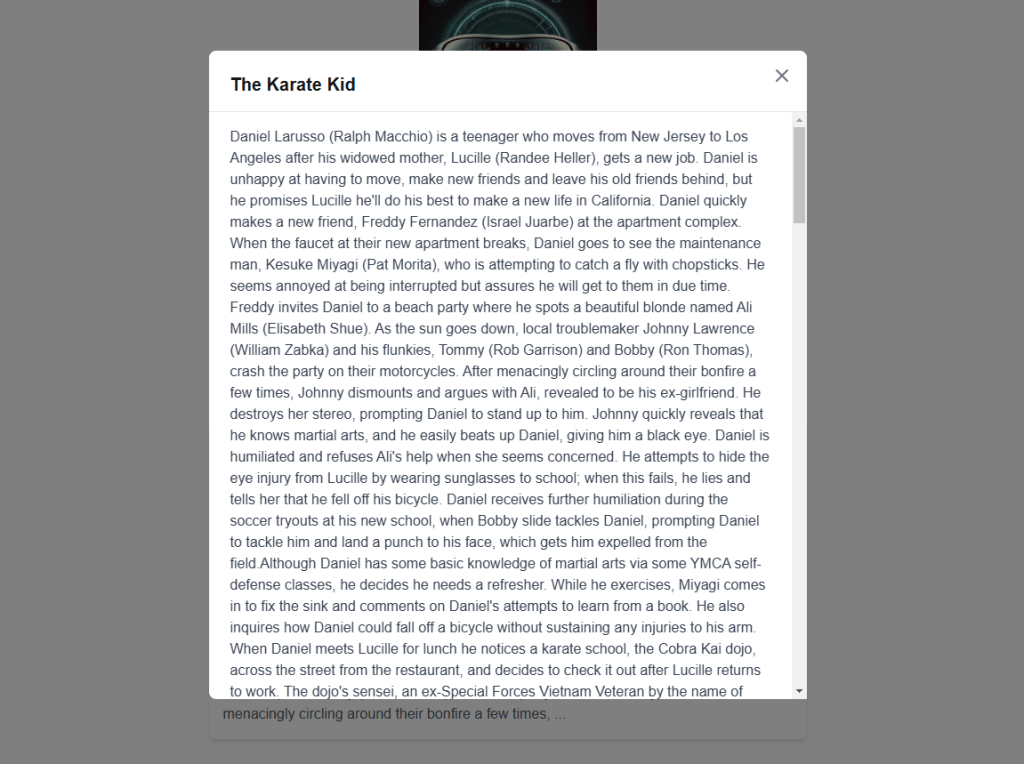
  3. Modal.tsx – Displays:
    • Movie title as the modal header.
    • Full plot description in a scrollable window.

The final UI looks as follows:

Figure 1. An example Semantic Search Result (Plot results are truncated for a better display)
Figure 2. When the truncated Plot Description is clicked, the full Plot Description can be viewed in a scrollable Modal window
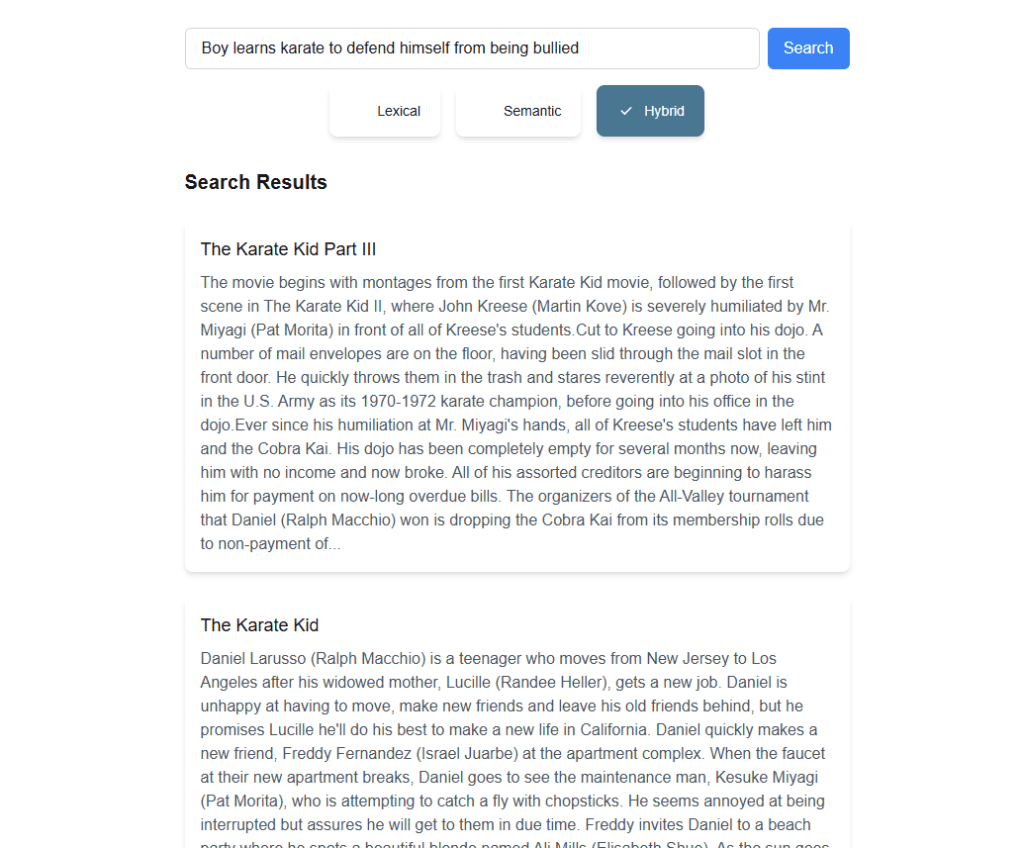
Figure 3. The result of a Hybrid search
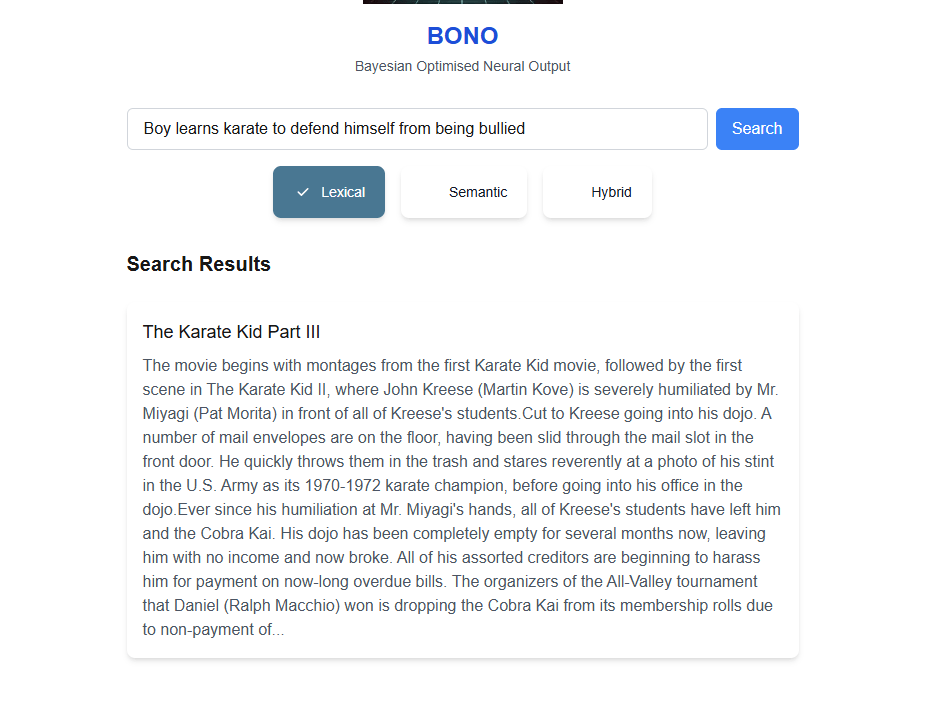
Figure 4. Results of a Lexical Search

Video: Running the BONO Search

This brings us to the end of the first version of the BONO search. Some Key takeaways are:

  1. Semantic search does add value for the user but can bring in some unexpected results. We can lower the possibility of anomalies in the search results by filtering out results below a certain semantic score
  2. The Hybrid search gives the best results overall by prioritizing results with high Lexical and Semantic search scores
  3. Semantic searches do come at the cost of vectorizing both the Searched data and Search text. If the search text changes, the vector data would need to be re-updated.
  4. Azure PostgreSQL Flexible Server extensions abstract the Azure Open AI details from the consuming API and allow us to integrate with the Open AI services at the database level. This ensures a more secure architecture as only the database server needs to connect to the Azure Open AI resource

You may take a look at the project here: https://github.com/ShashenMudaly/bono-search-project

Before we wrap up, let’s acknowledge the inspiration behind the BONO search system—U2’s classic hit, ‘I Still Haven’t Found What I’m Looking For’ is a song by U2, released in 1987 as the second single from their album The Joshua Tree. It’s a spiritual and introspective anthem that blends rock, gospel, and soul influences, featuring The Edge’s shimmering guitar work and Bono’s soaring vocals. The lyrics express a deep sense of yearning and searching—for love, meaning, faith, or something beyond the tangible. The song became one of U2’s most iconic tracks, resonating with listeners for its universal theme of an unfulfilled quest for something greater”…source: ChatGTP

I Still Haven’t Found What I’m Looking For (Part 1)…a U2 Inspired post

DALL-E generated U2 Inspired Album Art

Exploring Semantic Search with Azure AI and PostgreSQL

Last December, I came across the Microsoft Learn Challenge Ignite Edition: Build AI Apps with Microsoft Azure Services. Since I had recently completed the Azure Fundamentals (AI-900) certification and was planning to take the Azure AI Engineer (AI-102) exam in January, this challenge seemed like the perfect way to sharpen my skills while working towards my next certification. The requirement was to complete all modules by the January 10, 2025 deadline, and I figured that even if I didn’t finish everything, it would still be a great head start for AI-102.

What really piqued my interest, though, were the modules focused on integrating AI services with Azure PostgreSQL databases. I had a basic understanding of vector stores, but I hadn’t yet explored practical implementations. I was also pleasantly surprised by how straightforward it was to extend Azure PostgreSQL to leverage Azure OpenAI services for tasks like data enrichment and vectorization. That immediately put Semantic Search on my to-do list—I wanted to build a working example and see it in action for myself.

What is Semantic Search?

Semantic Search allows users to find records in a data store based on the meaning of their query, rather than simply matching keywords. This enables users to describe what they’re looking for in their own words, and the system returns results that are semantically relevant, rather than relying on exact keyword matches.

Imagine searching a product catalog on a home hardware website. If you’re like me—a complete novice when it comes to DIY repairs—you might not always know the exact name of the product you need. Let’s say you search for:

“I need to replace the thing inside a toilet tank used for flushing because it is leaking.”

A Semantic Search system would interpret this query, recognize the intent, and return results for a flush valve assembly (yes, I had to ask ChatGPT for the right term here!).

Now, if the same query were processed using a traditional keyword-based (lexical) search, the system would need indexed product descriptions covering a wide range of variations—flush, flusher, flushing, leak, leaky, leaking—and even then, it might struggle to return the correct product unless the user used the exact right keywords.

By leveraging AI-powered vector embeddings, Semantic Search removes that burden from the user, making searches far more intuitive and improving the overall experience.

Naturally, I wanted to try this out for myself.

Creating the Bayesian Optimized Neural Output (BONO) search database

In keeping with the U2 theme of this post, I decided to create a search system with a name inspired by that famous rock front man with the wrap around sunshades. I chose movies as the content for my database because movie plot data provided good examples of text descriptions I could use for testing the sematic search queries.

I first set up an Azure PostgreSQL Flexible Server and created a table called movies, populating it with around 4,000 movie entries, including their names and plot descriptions.

Next, I used a PowerShell script to iterate through each record in the table and vectorize the plot field, storing the result in a new field called plot_vector (of type vector). This was done using the create_embedding function from the azure_openai extension. PostgreSQL handled the heavy lifting by directly calling the preconfigured Azure OpenAI resource and my chosen embedding model (text-embedding-ada-002).

The following diagram illustrates this process:

I did run into some issues with Azure OpenAI throttling my requests, as I was processing a large number of entries. To work around this, I modified the PowerShell script to process records in batches of 25, adding a 55-second delay between each batch. While this made the process take significantly longer, I simply let the script run overnight to complete processing all 4,000 entries.

The PowerShell script executed the following UPDATE statement:

        UPDATE movies
        SET plot_vector = azure_openai.create_embeddings('text-embedding-ada-002', plot)
        WHERE id IN (
            SELECT id FROM movies 
            WHERE plot_vector IS NULL LIMIT $BatchSize
        );

The elegance of this approach lies in how the Azure OpenAI call is seamlessly integrated into the SQL statement. This ensures that the request is handled directly between PostgreSQL and the Azure OpenAI resource, rather than being made from the PowerShell script itself. By offloading this operation to the database, the process remains efficient, centralized, and eliminates the need for additional API calls from the script.

It was now time to experiment with a few semantic queries. My first test searched for the following phrase – Boy learns karate to defend himself from being bullied using a query as follows:

 SELECT m.id AS Id, 
        m.name AS Name, 
        m.plot AS Plot
FROM movies m
ORDER BY
 m.plot_vector <=> azure_openai.create_embeddings('text-embedding-ada-002',    
 'Boy learns karate to defend himself from being bullied')::vector
LIMIT 5

The results, unsurprisingly were:

Result of the Semantic query where “Boy learns karate to defend himself from being bullied” was used as the search term

What I found particularly interesting was that the plot description for that first movie title The Karate Kid did not actually contain the word “bullied” or any variation of it. Similarly, the description for next movie title The Sensei did not include “bullied” either but did contain “bully” and “bully’s”. This confirmed that the semantic search was working as expected, retrieving relevant results even when the exact keyword wasn’t present.

However, I soon noticed an unexpected anomaly. While the first four results clearly matched the search intent, the fifth result was surprising—Redbelt appeared in the list, even though its plot neither involved karate nor had anything to do with bullying. This movie plot instead describes the character learning Ju-jitsu which of course is a different martial art.

The results became even stranger when I searched for “Mammoth”, expecting the movie Ice Age to be the top result. Oddly enough, it wasn’t. The explanation became clear when I realized that the plot description for Ice Age didn’t explicitly mention “Mammoth”. But the real shocker? The Good Dinosaur ranked higher in the results.

Confused, I scanned The Good Dinosaur’s plot multiple times, convinced that a mammoth was never mentioned. Eventually, I turned to ChatGPT, and its response provided a fascinating insight into Large Language Models (LLMs).

Why Did This Happen?

Semantically, a mammoth and a dinosaur are related concepts (I can almost hear Jurassic Park fans sharpening their blades at this statement). While they aren’t genetically or biologically similar, they are both prehistoric animals, which makes them closer in meaning within the vector space of embeddings than other movies in the dataset.

This happens because semantic search represents words as numerical vectors in an n-dimensional space, and the distance between these vectors determines their relationship. The key word here is “probable”—semantic relationships are based on probability, not absolute definitions. This probabilistic nature is something that can be fine-tuned using parameters like temperature and top_p, which help control how loosely or strictly an LLM interprets relationships, ultimately reducing the likelihood of hallucinations.

A Lexical Search Comparison

Performing a Lexical search using the same search term as before “Boy learns karate to defend himself from being bullied” returned just a single result, the The Karate Kid part III as the plot of this entry contained all words in the search phrase. While the result is correct, it shows the weakness in the usability of the search method as it expects the user to refine their search term to get better results (and to incorporate Lucene syntax to convey their intent more accurately) . In this example there were other results that would have met the user’s expectation but did not get returned in the result set.

Lexical search however performed extremely well when the exact keywords were present in the plot description.

Here is the lexical search query using a different search term:

 SELECT m.id AS Id, 
                       m.name AS Name, 
                       m.plot AS Plot
FROM movies m
where to_tsvector('english', m.plot) @@ 
  websearch_to_tsquery('english', 'Dinosaur island')
ORDER BY similarity(m.plot, 'Dinosaur island') DESC
Limit 5
Result of the Lexical Search query using “Dinosaur Island” as the search term

Adding the keyword “Genetic” to the search text significantly disrupted the results, returning the title Avatar as the only match. This happened because Avatar was the only entry in the dataset that contained all three keywords as the plot described an island, genetic connections between an Avatar and it’s human and the “dinosaur-like” creatures. Surprisingly, The Lost World, which seemed like a strong candidate, was excluded—likely because it was missing the keyword “Genetic”, despite being otherwise relevant to the query.

In the end, I realized that both search methods had their strengths, depending on the circumstances. Lexical search excels when the exact keywords are known, while semantic search provides better results when users describe concepts in their own words. To create the most user-friendly and effective search experience, the best approach would be to combine both methods.

Here’s what that hybrid query looks like:

WITH semantic_results AS (                
  SELECT id as Id,name as Name, plot as Plot,
                        1-(plot_vector <=> azure_openai.create_embeddings('text-  embedding-ada-002', 
    'Boy learns karate to defend himself from being bullied')::vector) as semantic_score                
  FROM movies            
),

fulltext_results AS (                
  SELECT id as Id, name as Name, plot as Plot,                       
  ts_rank(to_tsvector('english', plot), 
  websearch_to_tsquery('english', 'Boy learns karate to defend himself from being bullied')) as text_score                
  FROM movies                
  WHERE to_tsvector('english', plot) @@ 
    websearch_to_tsquery('english', 'Boy learns karate to defend himself from being bullied')            
)

SELECT DISTINCT sr.Id, sr.Name, sr.Plot, 
(COALESCE(fr.text_score, 0) + sr.semantic_score) as score
FROM semantic_results sr
LEFT JOIN fulltext_results fr ON sr.Name = fr.Name
ORDER BY 
         (COALESCE(fr.text_score, 0) + sr.semantic_score) DESC
LIMIT 5

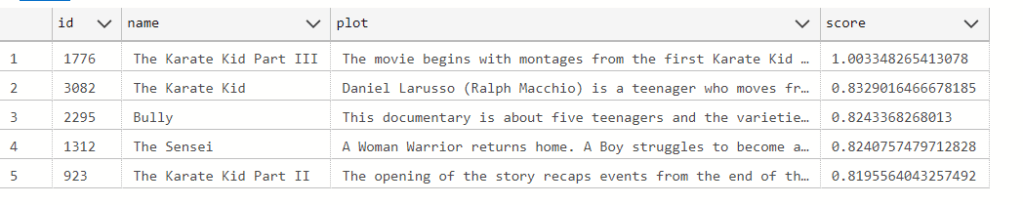
What the above query does is create 2 records sets (one lexical based and one semantic) that get joined by their common movie name. The Semantic score and Lexical Text score of each movie are then added together and the whole result is ordered in descending order.

The result of the Hybrid search. Karate Kid III has the highest Lexical score (contains the most key words) and Semantic score combined when compared to the other results

You may take a look at the Power shell scripts here: https://github.com/ShashenMudaly/bono-search-project/tree/main/data

In my next post, I’ll take this PostgreSQL-based search system a step further by building an API and a UI, bringing the BONO search system to life as a fully functional application. Stay tuned!